This post is also available in:
“I keep hearing people talk about Grim Tools, but I have absolutely no idea how to use it!”
This Grim Tools guide is for you.
This time, we’ll be taking a look at the Build Calculator.
What Is Grim Tools?
Grim Tools is a website containing almost every piece of data you could possibly need for Grim Dawn.
It lets you search through detailed game data, plan builds, and run all kinds of simulations.
You don’t need to download a separate app or create an account, either.
In this guide, I’ll explain how to use the Build Calculator, one of the most useful Grim Tools features for planning character builds.
Setting Up the Build Calculator
Open the Grim Dawn Build Calculator.
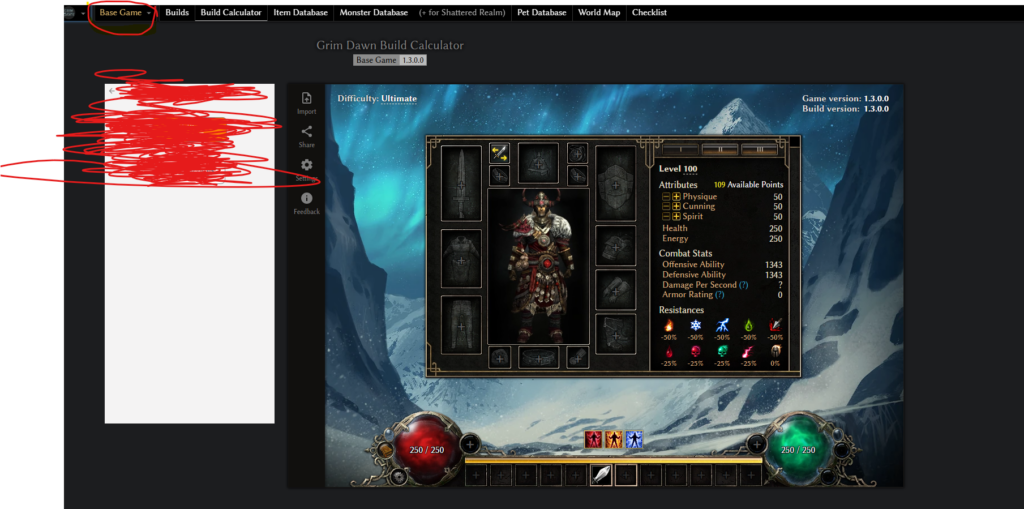
In the upper-left corner of the screen, open the Base Game menu and select the latest game version.
The entire interface will change to match the version you selected.
Why are all my resistances negative?
Take another look at the upper-left corner of the screen.
[Image: Grim Dawn Tools – Build Calculator guide]
By default, the difficulty is set to Ultimate.
That means the resistance penalties for Ultimate difficulty are already being applied.
Click the area marked by the blue circle and change the difficulty to Normal if you want to plan a build for Normal difficulty.
How to Use the Build Calculator
There are three main things you’ll be doing in the Build Calculator:
- Equipping items
- Allocating Skill Points and Devotion Points
- Allocating Attribute Points
Let’s go through them one at a time.
Equipping Items
Click on any equipment slot.
A window like the one below should open.
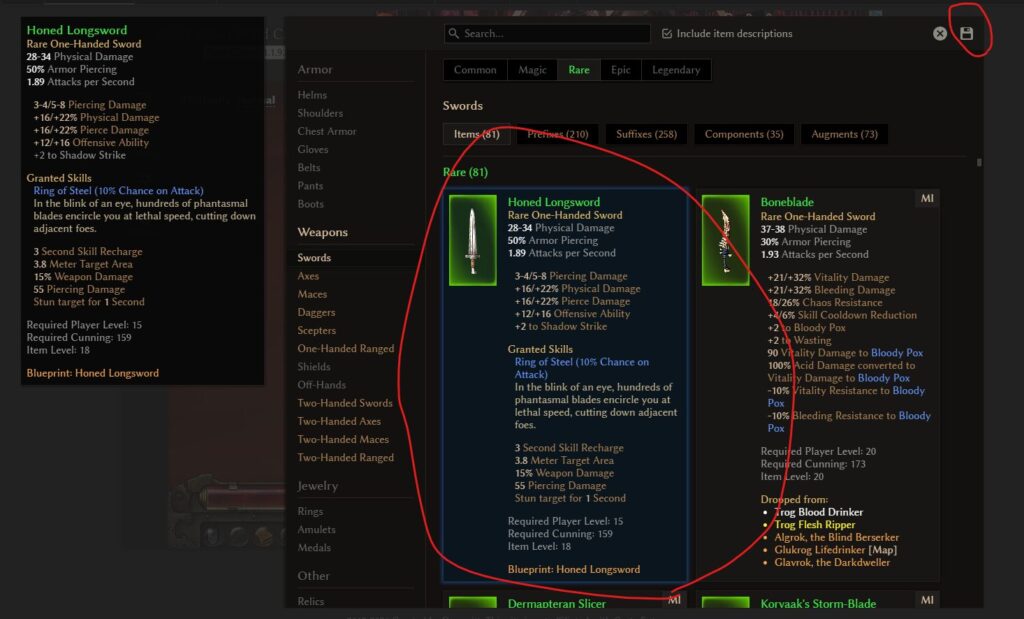
This is where you select an item for that particular equipment slot.
The column on the left lets you choose the item category.
At the top of the window is the search bar.
Below that, you can filter items by rarity.
The next row lets you configure the following options, in order:
- The base item
- Prefix
- Suffix
- Component
- Augment
Once you have selected the item you want, click the floppy-disk-shaped icon in the upper-right corner.
The item will then appear on your character sheet.
Repeat this process for the other equipment slots, and you’ll gradually put together a complete equipment setup.
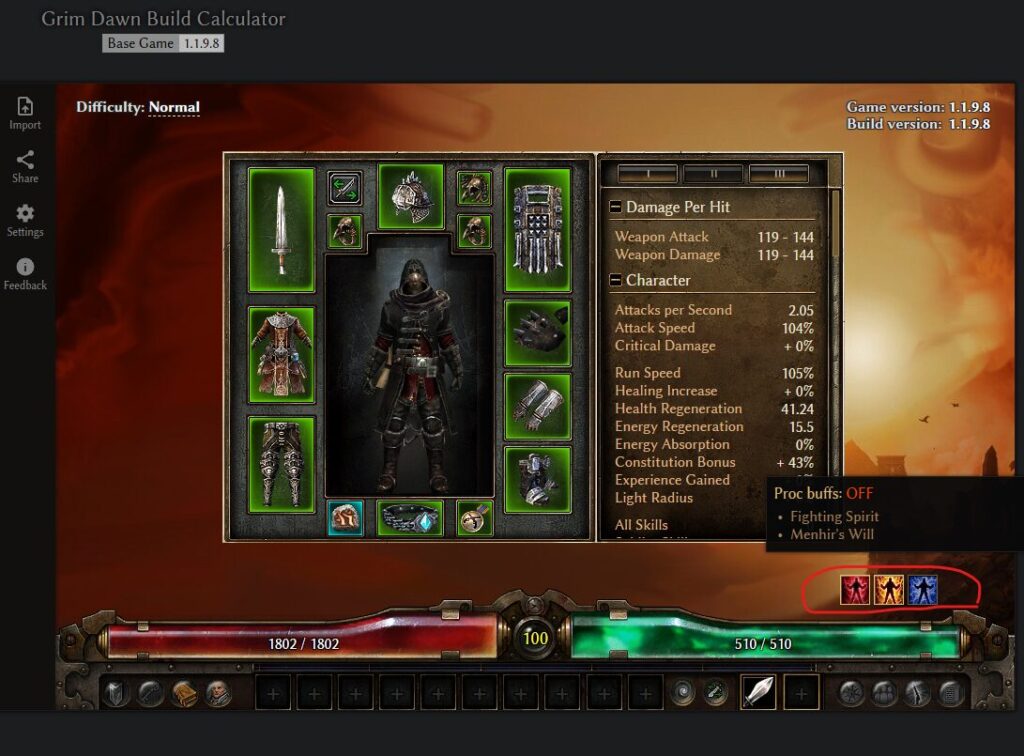
For now, I’ve just clicked around and equipped a few random items.
Click through the character-sheet tabs on the right-hand side of the screen to see how your equipment affects your stats and resistances.
Allocating Skill Points and Devotion Points
To allocate Skill Points and Devotion Points, click the book-shaped icon in the lower-left corner of the screen.
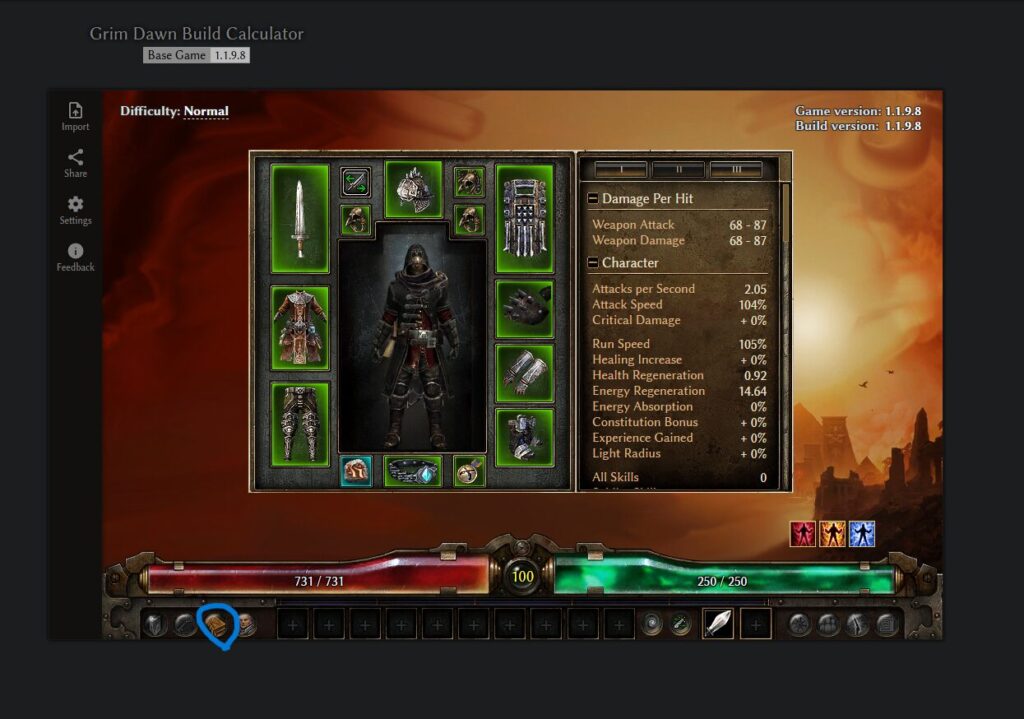
or in the left red sphere.
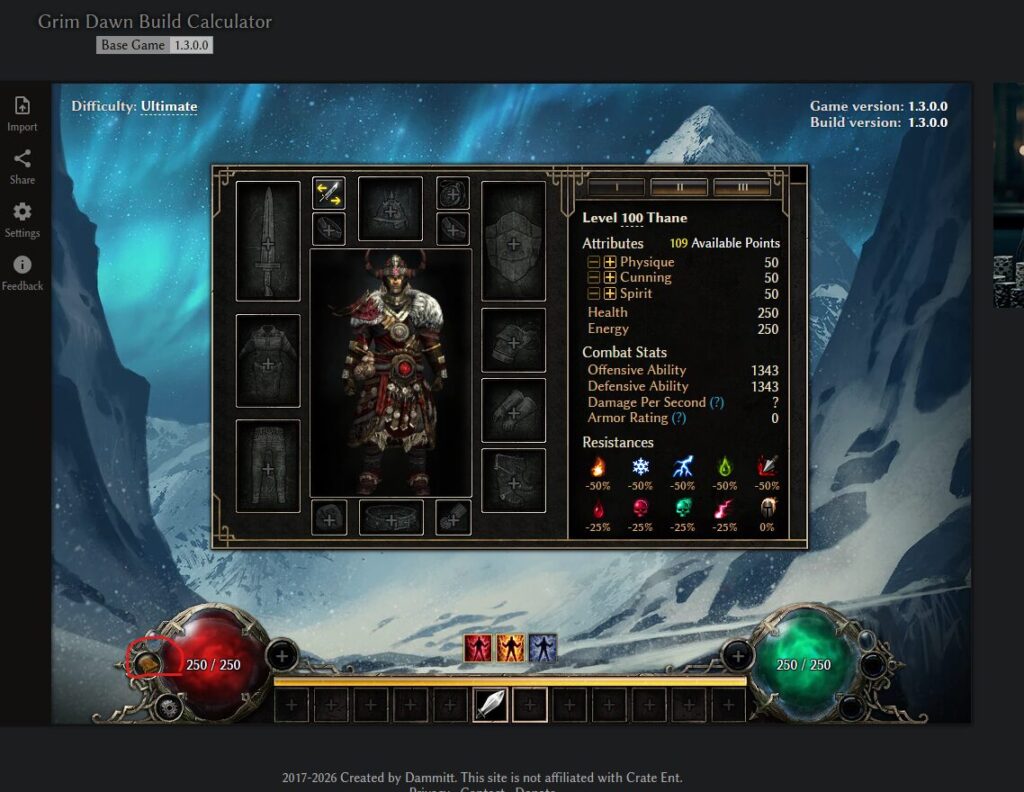
You should now see the familiar skill-selection screen.
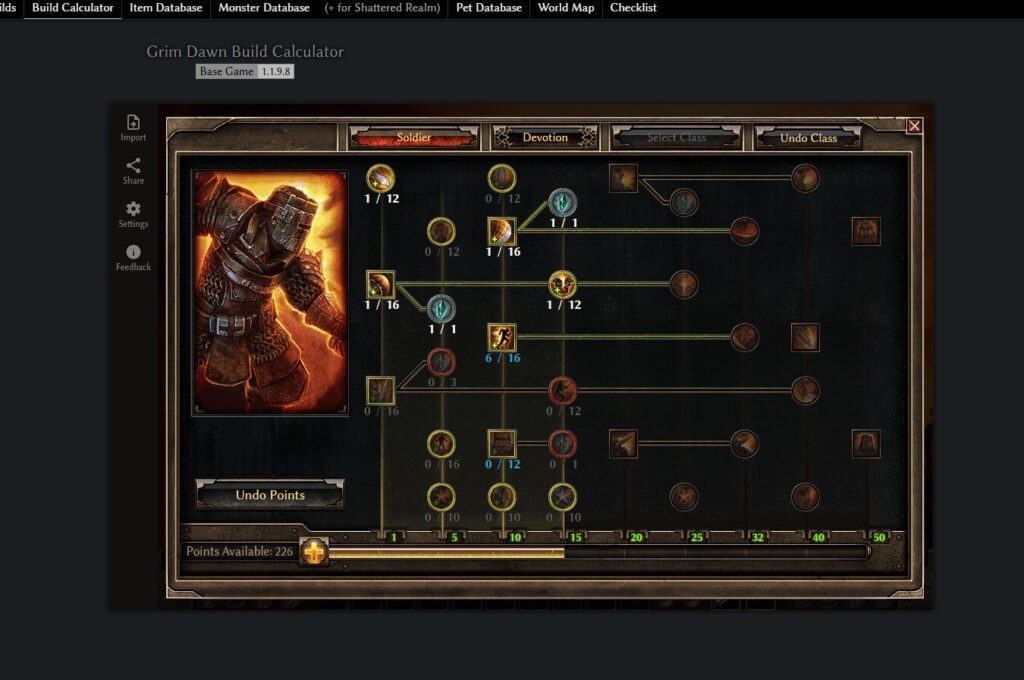
Left-click a skill to invest points in it.
Right-click a skill to remove points you have already allocated.
The tabs and buttons at the top of the window provide several additional options:
- Devotion lets you select constellations. Left-click to invest points and right-click to remove them.
- Select Class lets you choose your second mastery.
- Undo Class lets you undo your mastery selection.
Once you have finished allocating your points, click the X in the upper-right corner of the window to return to the character sheet.
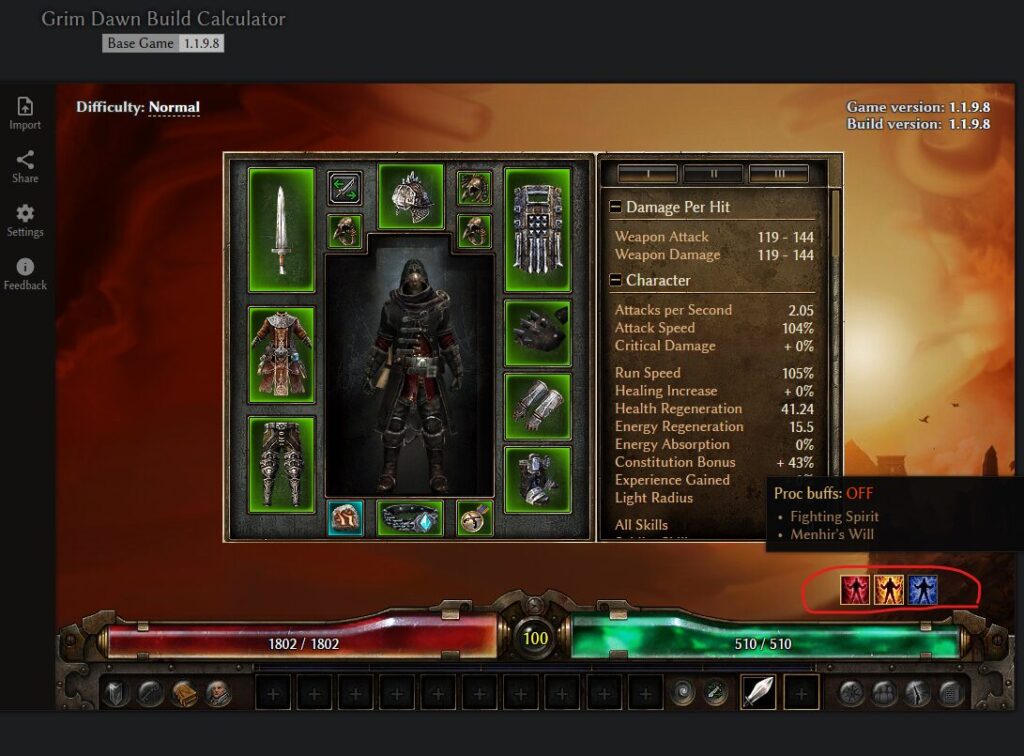
The effects of your selected skills will now be reflected on the character sheet.
You can also click the row of icons in the lower-right corner of the screen to see how your stats change when different buff skills are turned on or off.
Allocating Attribute Points
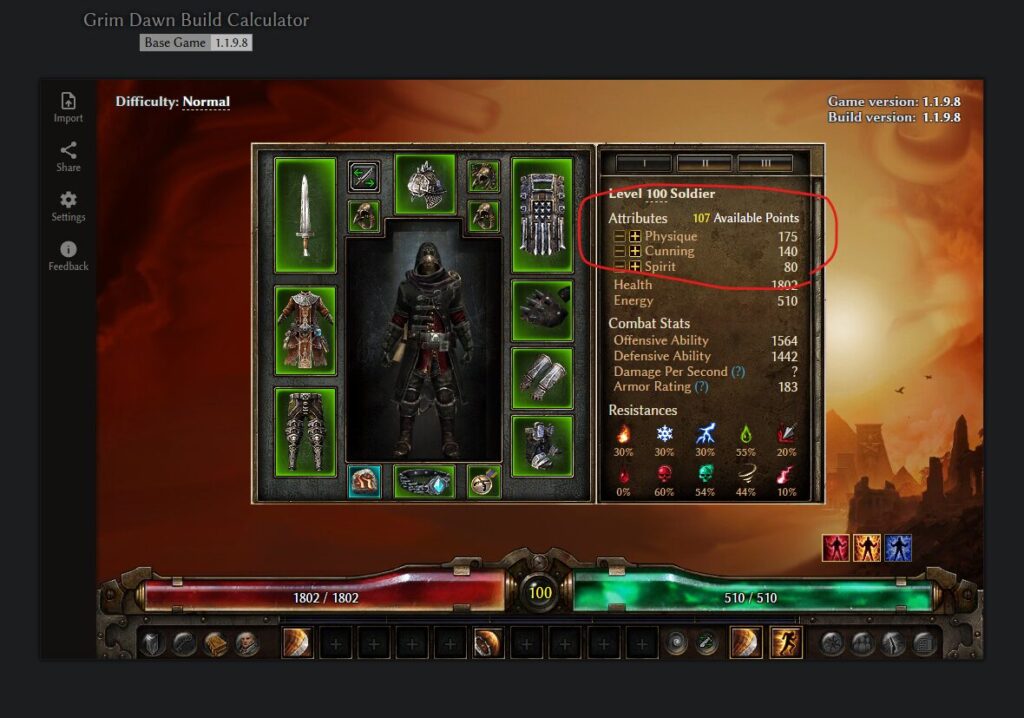
You can increase or decrease your attributes by clicking the + and − buttons in the area marked by the red circle.
This is especially useful when you want to test something like:
“How much Offensive Ability would I gain if I invested 30 Attribute Points into Cunning?”
Instead of committing those points in the actual game, you can simulate the result in the Build Calculator first.
Importing Your Character
Sometimes, you may want to start with your current equipment and skills rather than creating a build from scratch.
That’s where the import function comes in.
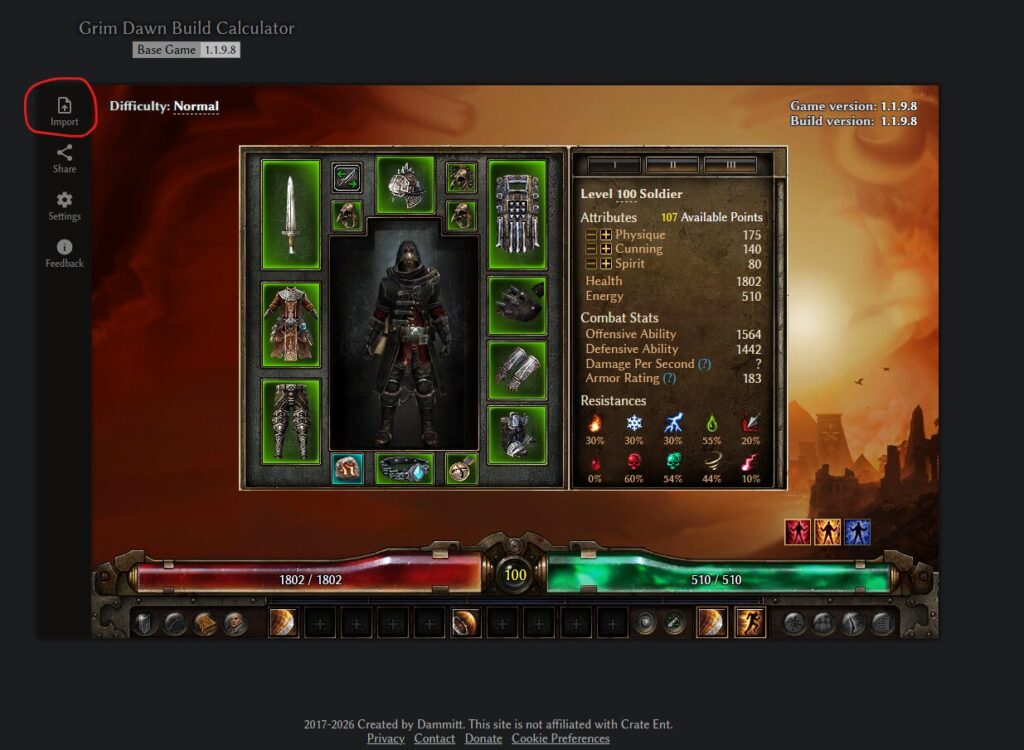
Click Import in the upper-left corner of the screen.
The two paths shown in the window are the directories where your Grim Dawn save data may be stored.
Inside the appropriate save directory, look for the following file:
/main_<CharacterName>/player.gdc
This player.gdc file contains your character’s save data.
Click the upload button marked by the red circle and select the file.
Your character will immediately be imported into the Build Calculator.
Saving and Sharing Your Build
Finally, let’s go over how to save and share your build.
This feature allows you to:
- Post a build on social media or a forum
- Ask other players for build advice
- Save a build idea so you can return to it later
The process is extremely simple.
Click Share on the left side of the screen and copy the URL that appears.
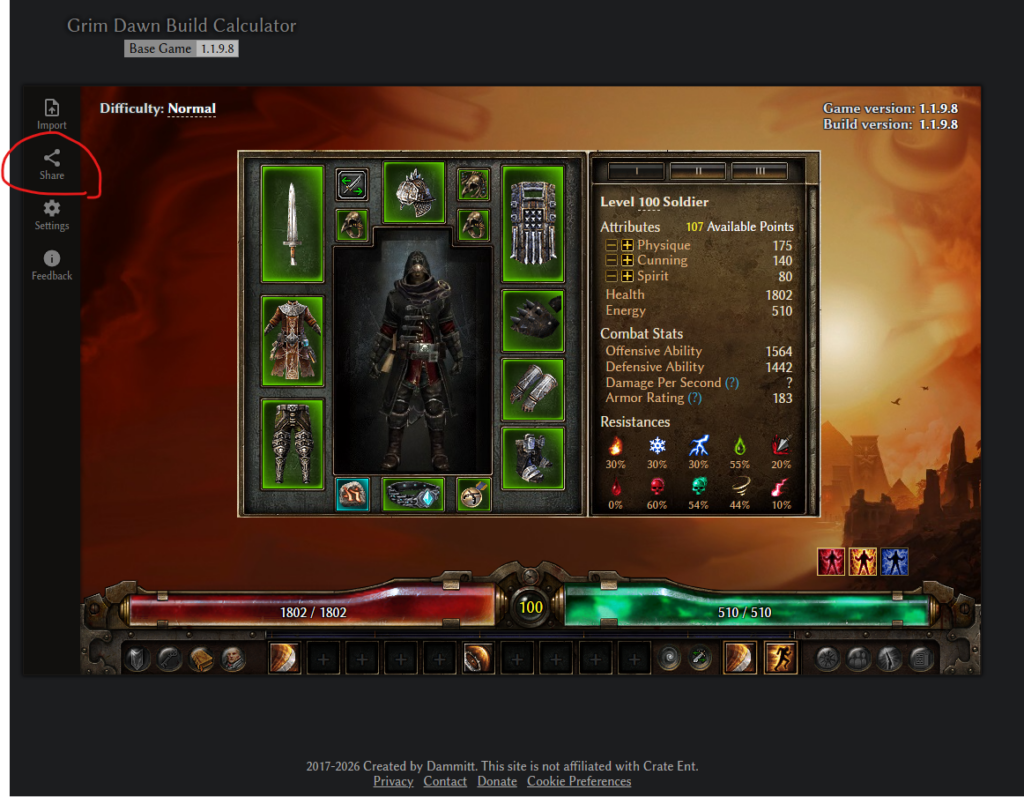
Opening that URL will take you back to the exact same Build Calculator setup.