This post is also available in:
“Where can I find detailed information about monsters in Grim Dawn?”
Whenever you find yourself asking that question, the Monster Database on Grim Dawn Tools is exactly what you need.
In this guide, I’ll walk you through how to use the Monster Database.
What Is Grim Dawn Tools?
Grim Dawn Tools is a website containing pretty much all the data you could ever need for Grim Dawn.
It also comes with powerful search functions and detailed simulation tools.
You don’t need to download a special app or create an account to use it, either.
This time, we’ll be looking at how to use the Monster Database, which is particularly useful when you want to examine monster data.
Getting the Monster Database Ready
Open the Grim Dawn Monster Database using the link above, then make sure the interface is set to English.
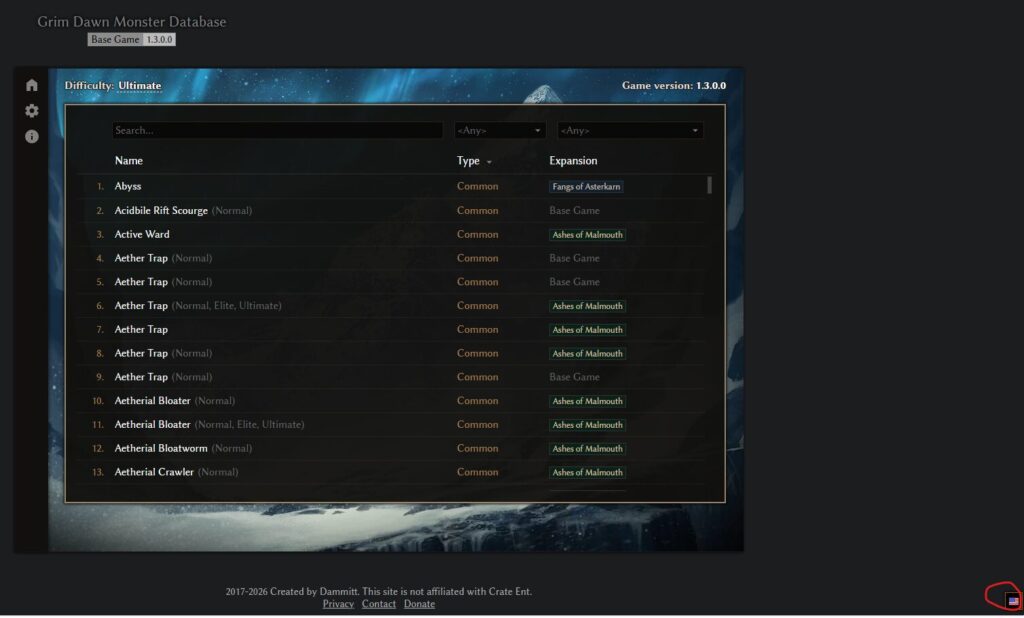
There is a tiny flag icon in the bottom-right corner of the screen.
And when I say tiny, I mean roughly the size of an ant.
That is the language settings button.
Click it and select English to switch the interface to English.
Narrowing Down Your Search
Searching by Monster Name
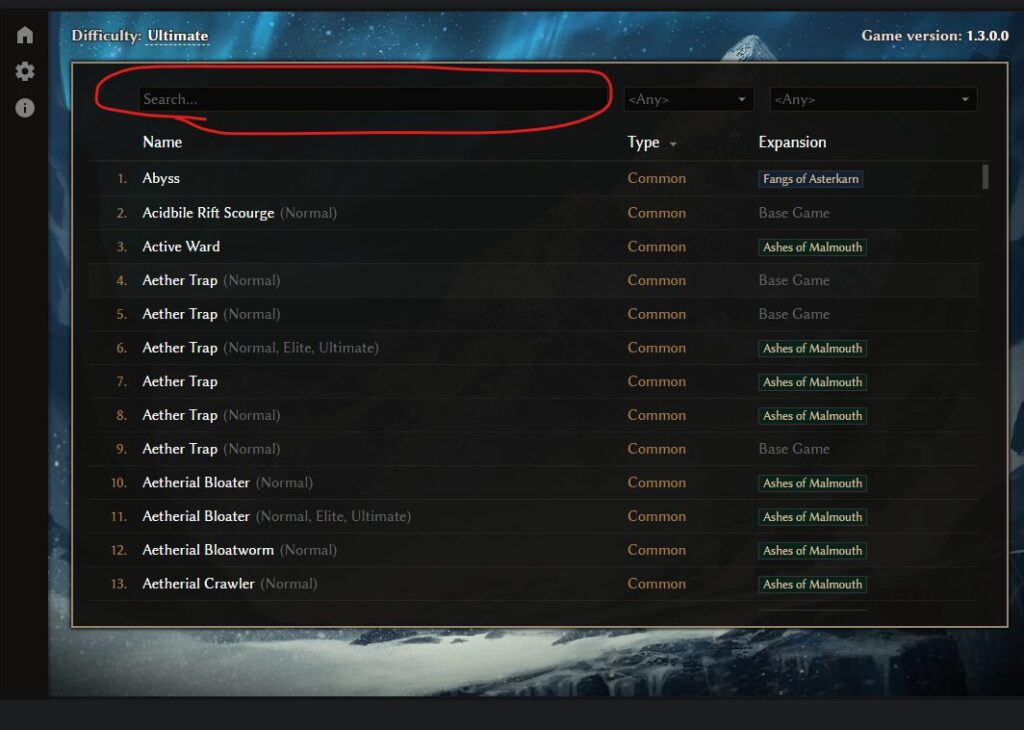
You can search for a monster by entering its name in the search box.
Filtering by Monster Type
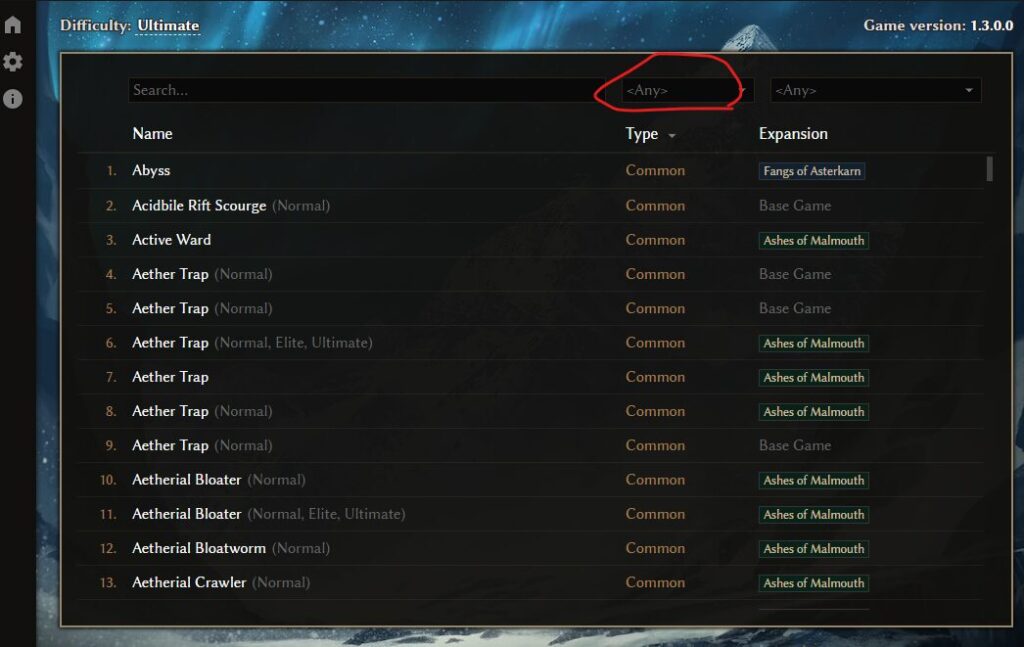
You can also narrow the results down by monster type, such as Super Boss, Common, or Elite.
Filtering by DLC
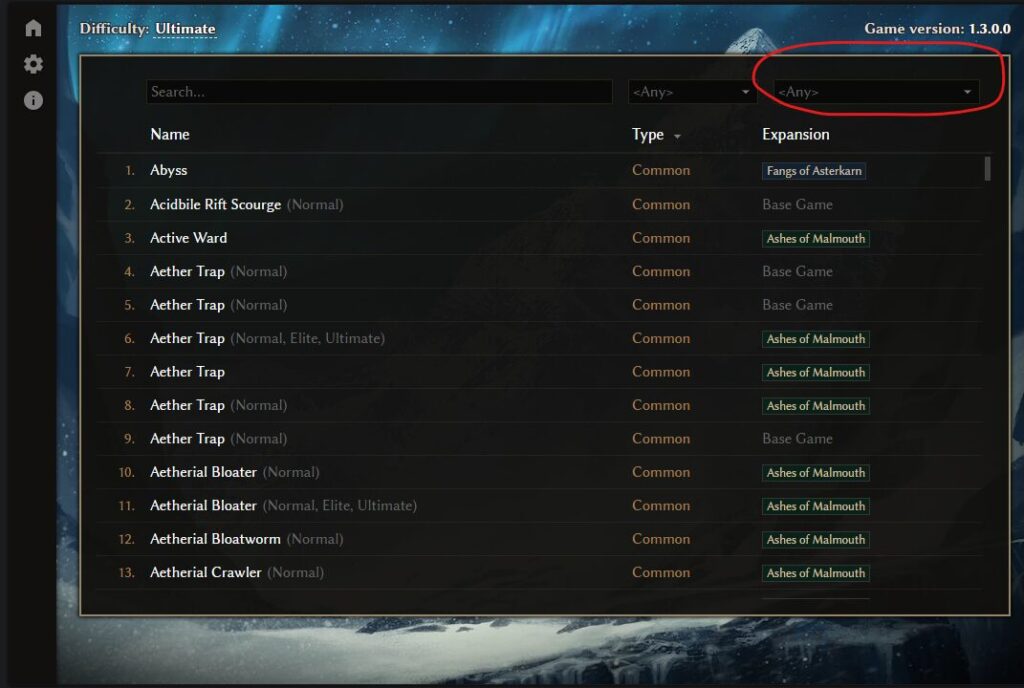
You can filter monsters according to the DLC or expansion they belong to.
Any includes monsters from all available content, while Base Game shows monsters that appear without any expansions installed.
Viewing Monster Data
Click a monster’s name to open its detailed data page.
Setting the Difficulty
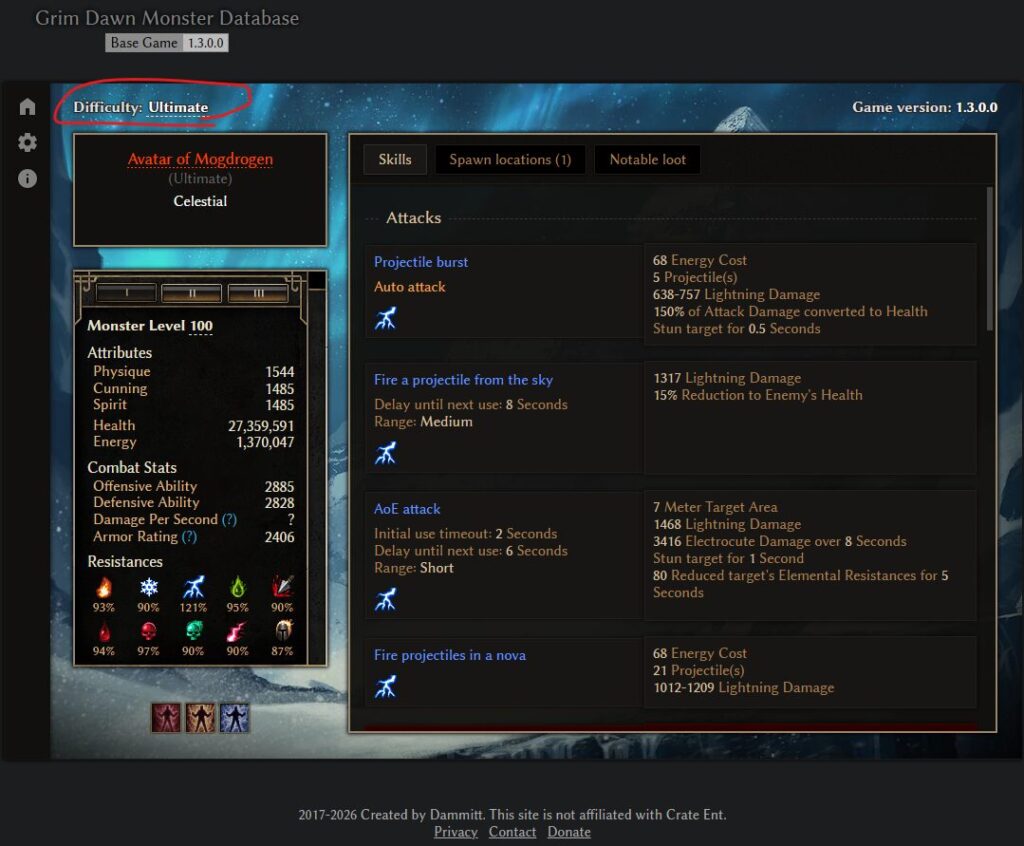
Click the difficulty setting in the upper-left corner to view the monster’s stats on the difficulty you are interested in.
Checking a Monster’s Character Sheet
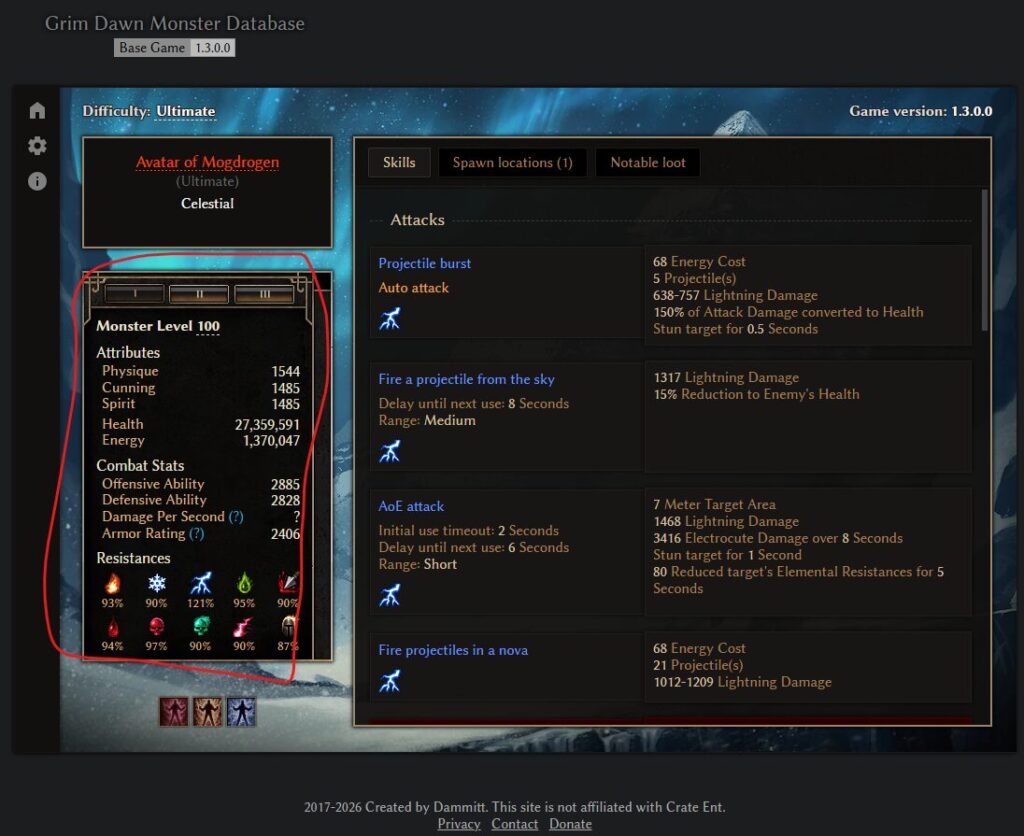
A monster’s character sheet uses the same general format as the player character sheet.
That means you can use it to examine the monster’s attributes, combat stats, resistances, and other important information.
Two sections are particularly useful:
- When playing a build focused on a specific damage type: Check the monster’s Resistances to see how much of your primary damage type it can block.
- When playing a build focused on critical hits: Check the monster’s Defensive Ability to estimate how easily you will be able to land critical hits against it.
Checking Its Skills
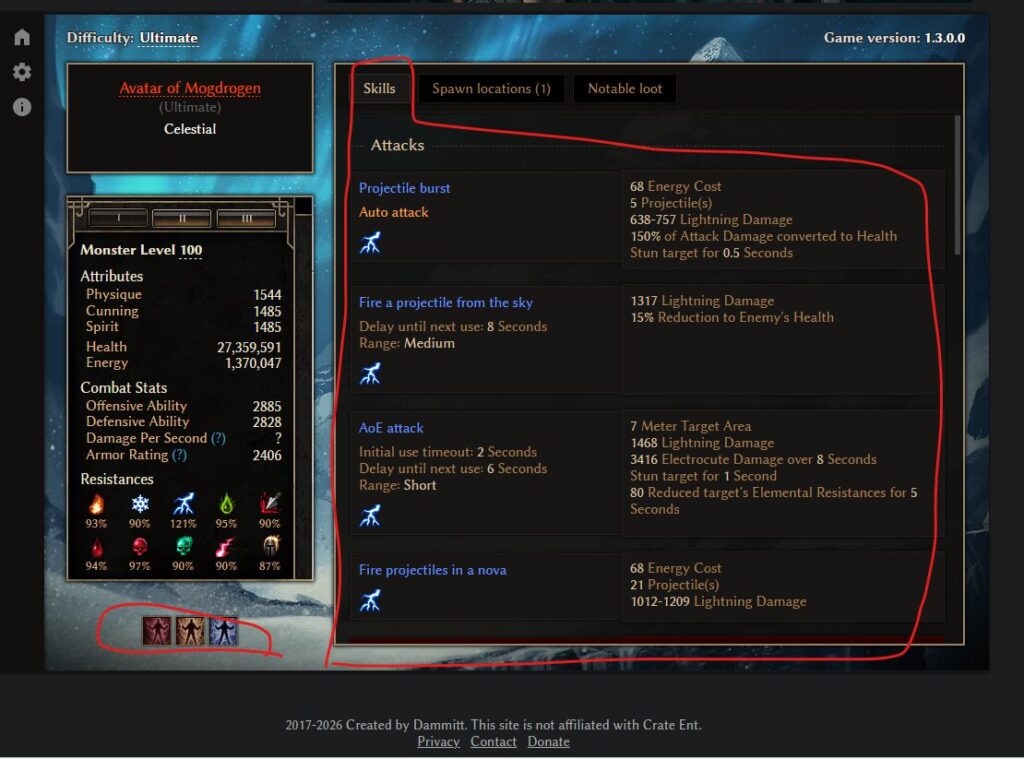
The Skills tab displays a list of the monster’s skills.
This is especially useful when you want to find out which damage types the monster uses.
You can click the three humanoid icons in the bottom-left corner to toggle its buffs on and off.
The effects of those buffs are immediately reflected on the character sheet described above, so check whichever stats you are interested in.
This allows you to see exactly how much stronger an enemy becomes after activating its self-buffs.
Finding Where a Monster Spawns
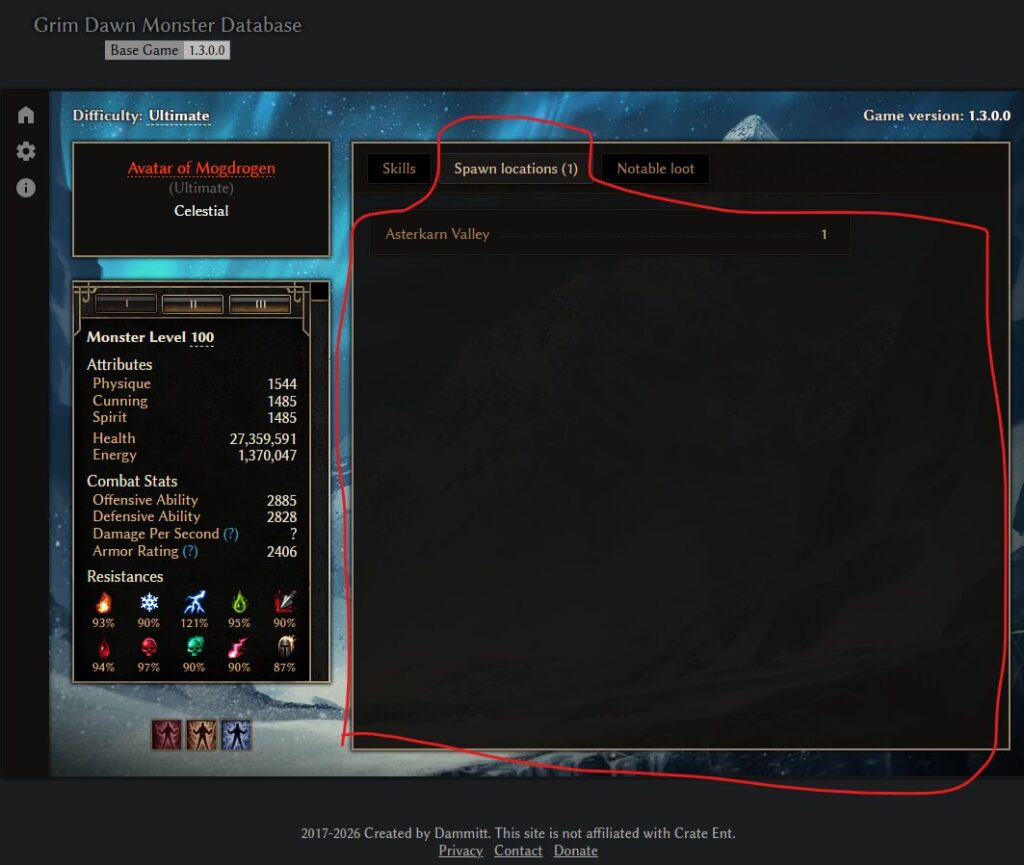
Open the Spawn Locations tab to see where the monster can appear and how many of them can spawn in each area.
This is particularly useful when:
- You want to find a boss.
- You need to locate a bounty target.
- You want to farm a particular type of monster and need an area where large numbers of them spawn.
Checking Special Drops and Drop Rates
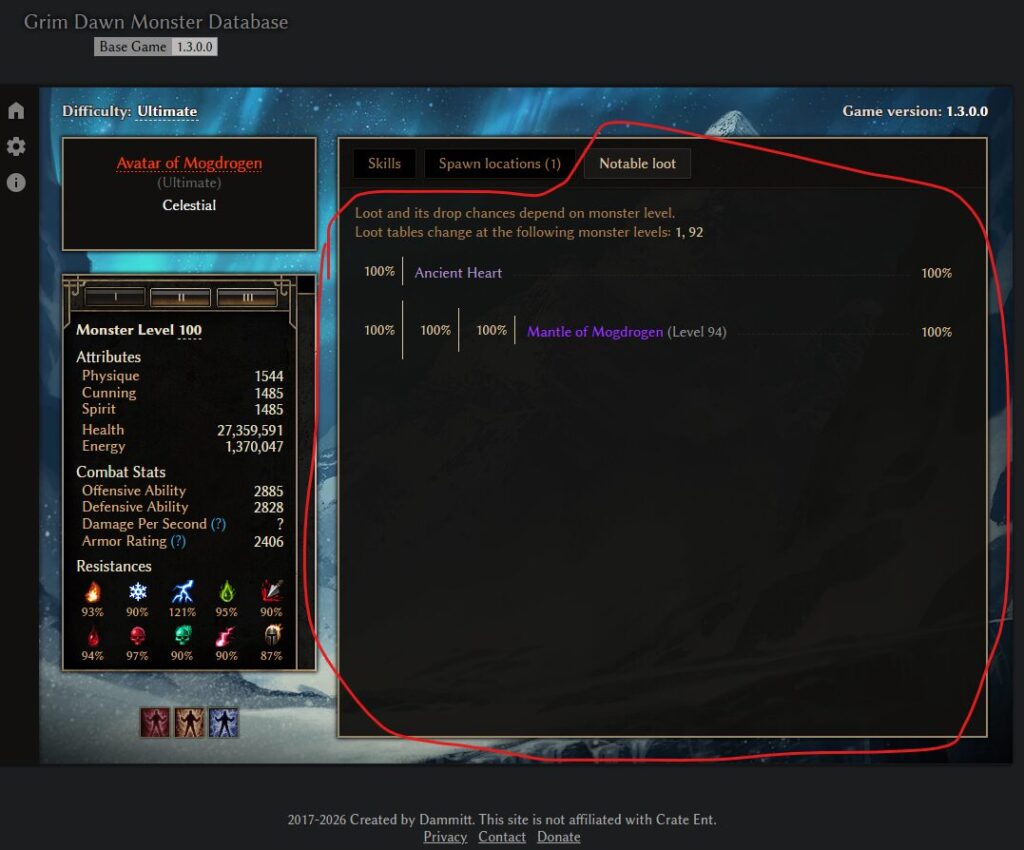
The Notable Loot tab displays blueprints, Monster Infrequents, and other special items that the monster can drop, along with their drop rates.
This is extremely useful when target-farming a particular item, as it gives you an idea of how often you can realistically expect it to drop.